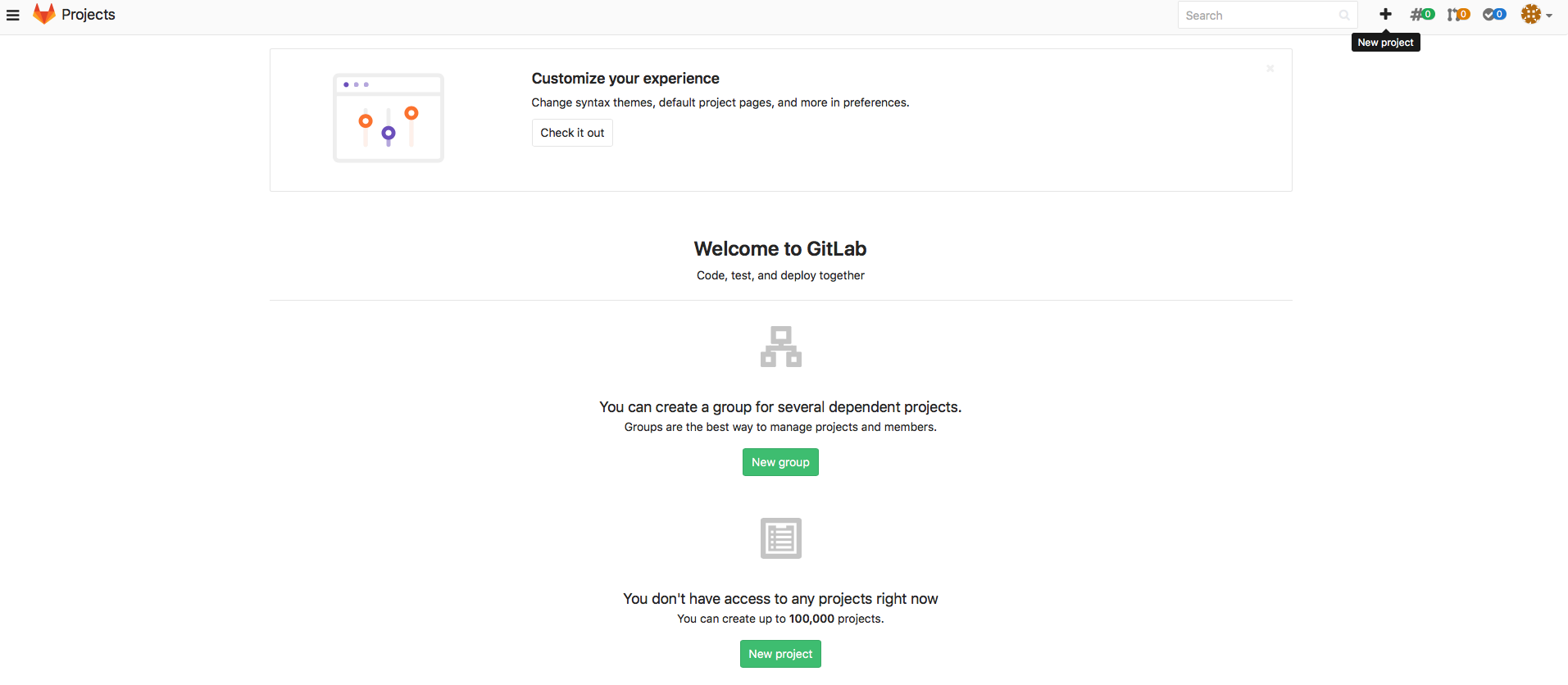
- Login to GitLab web GUI and create a new project:
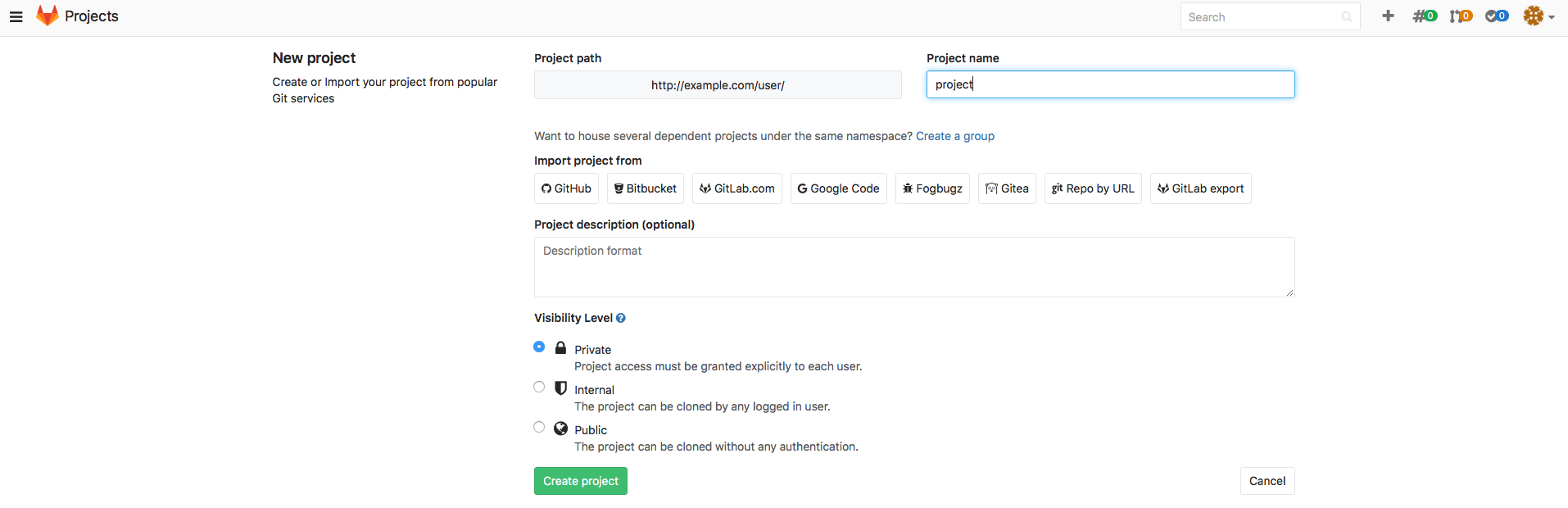
Give a name to your project and click Create project button.
Change identity to 'git' user:
$ su git
Change directory to that one that contains the newly created project. GitLab usually stores its project in
/var/opt/gitlab/git-data/repositories/<username>
username here is actual GitLab username that was used during the project creation on step 1. Step into that directory:
$ cd /var/opt/gitlab/git-data/repositories/user
New GitLab project that has been created at step 1 is being stored here in the directory of the same name we named the project:
$ ls -l
total 0
drwxrwx---. 6 git git 131 apr 25 02:06 project.git
drwxrwx---. 6 git git 131 apr 25 02:06 project.wiki.git
Perform initial import configuration:
$ subgit configure --layout auto --trunk TRUNK SVN_URL GIT_REPO
where
SVN_URL– SVN project URL.GIT_REPO– a path to new Git repository.TRUNK– a path, relative toSVN_URL, that leads to an SVN directory that plays a role of the main line of development.
$ subgit configure --layout auto --trunk trunk http://svn.example.com/svn/repository/project ./project.git

            SubGit version 3.2.4 ('Bobique') build #3670

            Configuring writable Git mirror of remote Subversion repository:
                Subversion repository URL : http://svn.example.com/svn/repository/project
                Git repository location   : ./project.git

            Git repository is served by GitLab, hooks will be installed into 'custom_hooks' directory.

            Detecting peg location...
            Authentication realm: <http://svn.example.com/:80> Subversion Repository
            Username [git]: user
            Password for 'user':
            Peg location detected: r10248 project/trunk
            Fetching SVN history... Done.
            Growing trees... Done.
            Project origin detected: r1 project/trunk
            Building branches layouts... Done.
            Combing beards... Done.
            Generating SVN to Git mapping... Done.

            CONFIGURATION SUCCESSFUL

            To complete SubGit installation do the following:

            1) Adjust Subversion to Git branches mapping if necessary:
                /var/opt/gitlab/git-data/repositories/user/project.git/subgit/config
            2) Define at least one Subversion credentials in default SubGit passwd file at:
                /var/opt/gitlab/git-data/repositories/user/project.git/subgit/passwd
               OR configure SSH or SSL credentials in the [auth] section of:
                /var/opt/gitlab/git-data/repositories/user/project.git/subgit/config
            3) Optionally, add custom authors mapping to the authors.txt file(s) at:
                /var/opt/gitlab/git-data/repositories/user/project.git/subgit/authors.txt
            4) Run SubGit 'install' command:
                subgit install ./project.git
Specify authors mapping.
Configure authors mapping in default authors mapping file:GIT_REPOS/subgit/authors.txt
Or changecore.authorsoption so that it points to the global authors mapping file.
Find more details about authors mapping in Authors mapping article.
Import data to the repository by the command:
$ subgit import GIT_REPO
$ subgit import ./project.git

   SubGit version 3.2.4 ('Bobique') build #3670

   Authentication realm: <http://svn.example.com:80> Subversion Repository
   Username [git]: user
   Password for 'user':

   Translating Subversion revisions to Git commits...

      Subversion revisions translated: 10248.
      Total time: 2 hours 15 minutes 38 seconds.

   IMPORT SUCCESSFUL
When the command completes, you can clone your new Git repository and start to work with it:
$ git clone GITREPO WORKTREE
where
- WORK_TREE – path to your working copy.
- GIT_REPO – GitLab project URL:
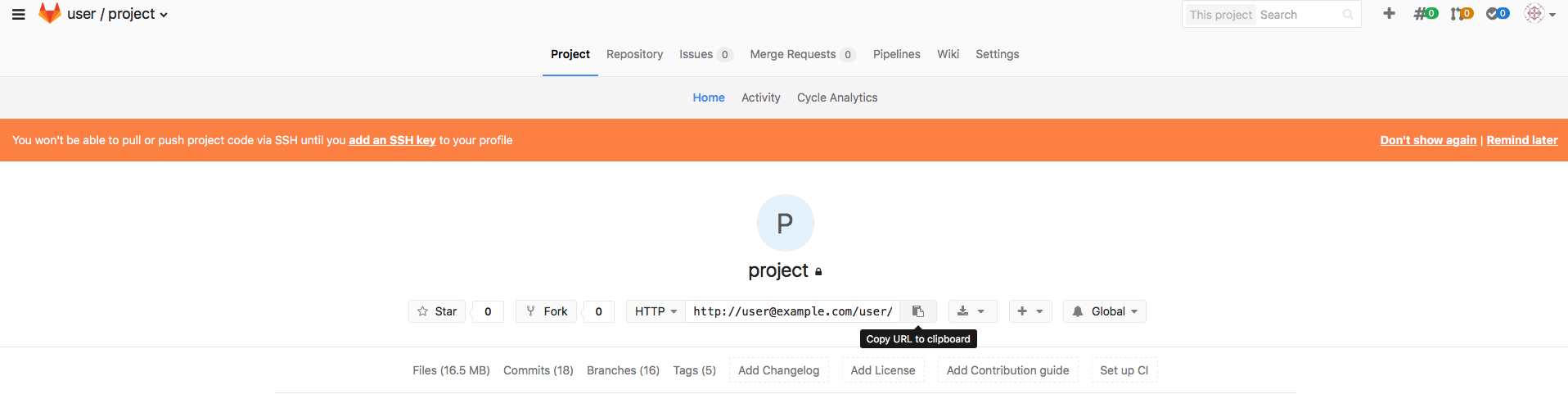
$ git clone http://user@example.com/user/project.git ./project.git
      Cloning into './project.git'...
      Password for 'http://user@example.com':
      remote: Counting objects: 99, done.
      remote: Compressing objects: 100% (39/39), done.
      remote: Total 99 (delta 50), reused 99 (delta 50)
      Unpacking objects: 100% (99/99), done.
If Git warns you that you are cloning an empty repository and you don't see your files in the working tree, most probably automatic branches and tags mapping didn't work correctly. In this case, mapping has to be set manually, see details on mapping in Branches and tags mapping.
Have you faced with any problems, see the following guide for more details: